Running Agents on Tasks
This page is for anyone who wants an agent to work on a task. After reading it you can turn agents on for your computer, pick an agent and a model, start a run from a task or from the command line, and answer the questions an agent asks while it works. Installing runners for a team, or running Tack on a server, is the Administrator Guide's job: see Installing and Operating Runners.
Do you need an agent?
Only if you want a task's Run with agent button to do something. Tack is a project manager that always runs and an agent executor that stays off until you turn it on. Everything else works without one.
| Works without an agent | Needs an agent on this computer |
|---|---|
| Board, list, calendar, timeline and dashboard views | The Run with agent button on a task |
| Creating, moving, commenting on and searching tasks | An agent such as Claude Code or Codex working on your code |
The CLI and tack mcp for all of the above | A task that starts by itself (Automating a Project) |
| A webhook for what needs you, GitHub sync and backups |
With no agent turned on, Run with agent says "Agent execution is off" instead of showing a form.
Turning agents on for one computer is a switch on the Agents page. A shared server needs a separate runner instead, which is an administrator's task: see Installing and Operating Runners.
Agents on this computer
The Agents page is about this computer only. It holds nothing that belongs to a project.
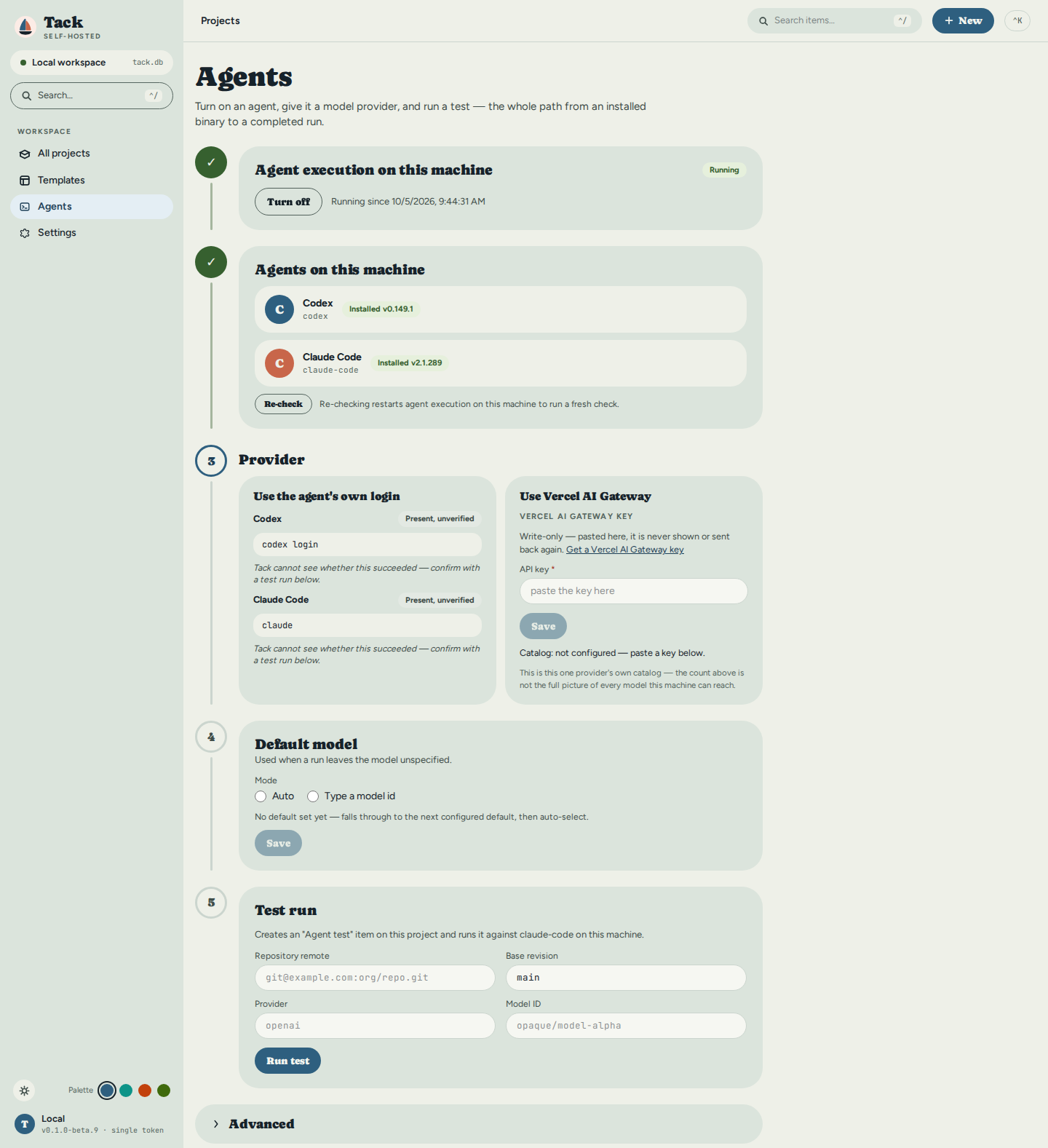
- Turn agents on. One switch for this computer. It takes effect at once, with no restart.
- See which agents are installed, with their versions. Tack looks where a terminal would look; if an agent is installed somewhere unusual, see Where Tack looks for an agent.
- Sign in. One row per installed agent, asked of the agent itself: "Signed in", or "Not signed in.
Run
<command>in a terminal." with a link to that agent's own documentation. When the agent cannot say whether it is signed in, the row is a warning: it shows the command to run in a terminal to see why, and the agent's own message in a fold, "What the agent said". Tack holds no model key. Each agent signs in and reaches its model with its own tools. - Run test. Checks that an installed agent starts and answers. It names no model, so it uses an installed agent that runs with its own default. When every installed agent needs a model named, the button is disabled and says so.
The default agent, the model, where the agent works and what happens after a run are project settings, described in Automating a Project.
Choosing an agent
Tack drives a coding-agent program; it never runs a model itself. Four are supported: Claude Code, Codex, opencode and docket. Pick one by what it needs installed, how you sign in, and whether it can pause to ask you before acting.
| Agent | Install | Sign in | Can pause to ask you |
|---|---|---|---|
| Claude Code | Its own install, see Claude Code | claude, with a Claude subscription or its own API key | Yes, before every tool call |
| Codex | Its own install, see Codex | codex login | Yes, but only for a command that needs more than its sandbox allows |
| opencode | Its own install, see opencode | opencode auth login | Yes, before every tool your list allows |
| docket | Its own install, see the docket project | docket's own sign-in | Yes, before each call its policy gates |
tack runner doctor shows, per agent on a machine, whether it is found and signed in and which models it
offers; see CLI.
Details per agent
- Claude Code. Reports the tokens it used, how many model calls it made and every model it touched. It honours the
tools you allow; when the run names none, the profile's list for Claude Code is used. Every tool means
its file, shell and web tools, not its sub-agents or schedules, and it is not asked to sign its commits as
Claude's. With Ask before each action on, the tools that only read (
Read,Glob,Grep,WebFetchandWebSearch) run without stopping, so a Researcher can read twenty pages without twenty questions; every other tool still asks. Tack stops it when the run's counted tokens reach the token limit. A run that turns web tools off blocks only Claude Code's own web fetch and search tools by name. Its shell can still reach the network if the allowed tools include it, so narrow the tool list too for a sensitive task. - Codex. Reports tokens. Allowing a tool that writes files runs Codex in its workspace-write sandbox; allowing none, or only read tools, runs it read-only. When the run names no tools, the profile's list for Codex decides. With Ask before each action off, a write the sandbox forbids simply fails inside the run. With it on, Codex pauses only for a command that needs to escape the sandbox; a command inside the sandbox runs without asking. Codex has no switch for web tools or a token limit, so neither reaches it.
- opencode. Reports tokens, summed over the run, with what its cache served counted apart. It may edit files and run commands only when the tools you allow include them; when the run names none, the profile's list for opencode is used. Tack stops it when the tokens it has used reach the run's token limit. A model that refuses the run, for example because its key has expired, fails the attempt with the model's own sentence. It reaches the npm registry and installs packages before it does anything else, on every run, so a request that turns the network off is refused before opencode starts. A run gets its own copy of your opencode sign-in and model settings; its other settings (extra tool servers, plugins, permissions) do not reach the run.
- docket. A run goes to a team. Each docket team is a long-lived group with its own members, models, checks and way of working, kept by docket itself. Tack sends the task to the team, follows what the team does, shows its steps on the task's timeline, relays its questions to you, and cancels it if you do. A Team answers the six things you ask of any team: what it is for, who is in it, what happens to a card, when it asks, how far it goes and how to send it work. A profile names its team; a profile with no team uses a team named for the project's folder, which Tack creates when it does not exist. docket works on a new branch of your folder: choose that under Where the agent works. docket keeps its own sign-in and confines its agents itself, so Tack passes it no model key. The task carries your denied tools and web setting, your token limit, its type and priority, and the acceptance criteria that name a command or a test, which become the team's gate. A team that needs a person during a run limits how far Tack may merge its work by itself: see The ceiling. The administrator sets up docket on the runner, with the docket version that guide names; see Installing and Operating Runners.
Choosing a model
You usually choose nothing. The default is Agent's default: the model the agent itself uses when you run it in a terminal.
A run's model is one optional string in the agent's own spelling: sonnet for Claude Code,
gpt-5.6-terra for Codex, anthropic/claude-sonnet-4-5 or local/qwen for opencode. Tack passes it to the
agent and never interprets it. The Model field in the run dialog and in a project's Automation settings
shows:
- Agent's default, when the agent does not need a model named;
- the models the agent listed, or the ones its documentation suggests;
- Another model…, a text field for any name.
A line under the field says where the list came from ("From Codex on this computer") or, when the agent
cannot list its models, how to name one, with a link "How <agent> names models". Tack never checks a typed
name; the agent checks it when the run starts.
| Agent | Models it offers here | Its documentation |
|---|---|---|
| Claude Code | Suggested: sonnet, opus, haiku | Model configuration |
| Codex | The entries codex debug models lists | Codex models |
| opencode | opencode models, from the providers you signed in to; with no sign-in, only opencode's free models | Models |
| docket | None listed; type a name | docket |
Which model a run gets
The first of these that has a value wins:
- The run's own model: the dialog's model field, or
--model <name>on the command line. - The project's default model, when the run uses the project's default agent. Set it in Settings → Automation. Changing the project's default agent clears it.
- The agent's own default.
The attempt card shows which models answered. When the agent named the model that answered, the card says so. When it only echoed the request, the card shows the model you asked for and does not claim more.
When no model is named
A run with no model is fine for an agent that does not need one: Claude Code and Codex use their own default, and so does opencode when its own settings name one. docket needs a model named, and so does opencode when its settings have none. A run for such an agent with no model waits, and the task says why ("Waiting: docket needs a model named"). If a runner looks at it and finds it cannot take it, and nothing changes for 30 minutes, it fails with that reason.
A run waiting for a computer that has stopped answering says so with the time it last did: "The computer this run asked for has not answered since" followed by that time. It waits until the computer answers again, or you run it on another computer.
A run waiting for a computer that is full says what holds it, for example "This computer runs 1 at a time and is busy with 'Release notes' since 15:30, which waits for your answer since 15:33". The task's name links to that task, and "runs 1 at a time" links to the Agents page, where that limit is set. When the run it waits behind is asking you a question, Answer it opens that question, beside Run on another computer. With several computers, the sentence has one part for each.
Running an item with an agent
There are four ways to start a run, and they all make the same request.
| Where | Use it for |
|---|---|
| The Run with agent dialog on a task | Everyday use |
tack execution create | Scripts; see Running from the command line |
| The REST API | Integrations; see the API reference |
The MCP tool create_execution | An AI assistant driving Tack; see MCP Server |
For the dialog the path is short. Turn agents on for this computer (Agents on this computer). Tell the project where its code is, either when you create the project ("Does this project have code?") or later under Settings → Automation (Automating a Project). Then press Run with agent on a task. The Tutorial walks through it with screenshots.
An epic is planned, its items are run
An item that holds other items (an epic, a building, a course, or a task that has items under it) is not run itself: its work is. Press Run with agent on one and the dialog says what to do instead: Plan with agent. Only the profiles that plan or research (Planner, Researcher) can be picked; the others are shown disabled with the reason, "Checkout is an epic: it holds work and is not run itself. Run its items, or plan it." A plan or a conclusion is proposed, not applied: when you accept it, its items go under the epic. Any profile can run an item that holds nothing.
The same rule holds everywhere a run starts: starting it by itself never starts an epic, only its work; the
command line and an AI assistant's create_execution are refused with the same sentence.
The Run with agent dialog
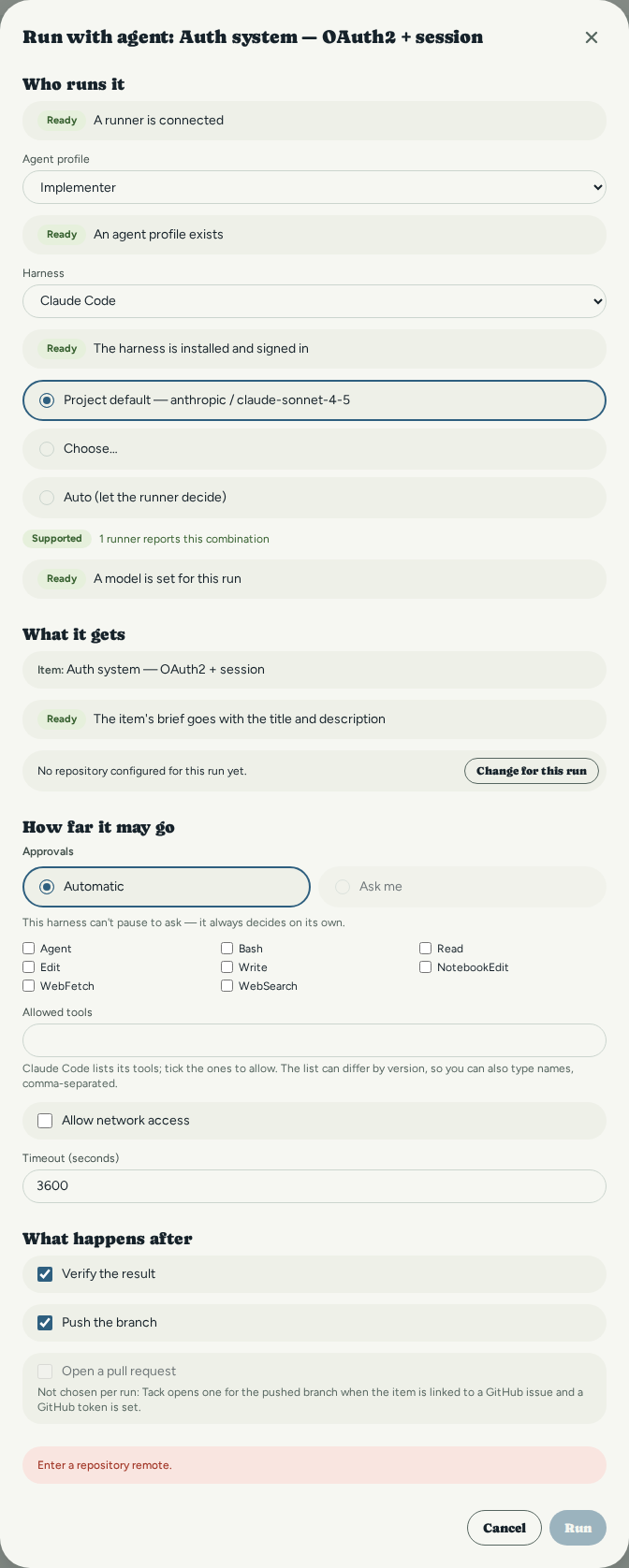
The dialog is a pre-flight, not a form. What belongs to the computer or the project is decided and shown read-only, and each part links to the page that owns it, so nothing is asked twice.
-
Who does it asks for the agent first, then the profile.
- The agents are a row of pills, Docket first, then Claude Code, Codex and OpenCode: each one the computer reports, and any agent a profile names that the computer does not report, greyed with the reason. Docket is chosen when a profile names a team, unless the project or the task names another agent.
- Under the chosen agent you see only its profiles, each a radio button, and one line with five icons for what that agent can do: stop a run, pick it back up after a restart, answer questions, propose items and report usage. Only something the agent cannot do, or did not report, is drawn crossed out; hover it for the reason.
- Under Docket the profiles are grouped by team. A team shows who is in it as small chips and an icon for where it works (a branch of your repository, or its own folder). The teams that no profile names yet are one greyed row, "3 teams have no profile yet", with a link to the Agents page. Under any other agent the profiles are one list.
- A profile that runs on any agent is under each of them. Changing the agent keeps it, and lets go of a profile the new agent does not run, so you pick again (or, when the agent has only one profile, it is picked for you).
- The profile the task's role chose is already selected, under its agent, and says so under its row ("Chosen by the role X"; the other sources are "Project default", "Saved on this task", "The built-in Implementer", or "More than one role has a profile, so the project default is used"). Teams explains how a role chooses.
-
What will happen is one line each, with an icon: which profile runs the task and on which model; where the agent works ("on a new branch of your repo", "in the folder, directly"; a profile whose team works in its own folder on this computer says "in the team's own folder on this computer, not in this repository"); what is installed before it starts ("No install: this profile runs no commands", or "Nothing is installed" for a team that works in a folder); the checks ("2 Done when · verifier on"); the sandbox; and the network. The profile, model and place link to where you change them.
-
Machine or group. Lists this computer and the other machines by name, then the groups. A machine that has stopped answering is shown disabled, with the time it was last heard. With one machine answering and no group there is nothing to choose, so the field is one line, "Runs on this computer". When no machine answers, the field is a warning instead, Agents offline, naming each machine and when it was last heard, with a link to turn agent execution on; the footer gives the same link in place of Start run. The sidebar shows the same Agents offline warning on every page while it lasts.
-
What the agent will read shows the real text it will be given: the profile's instructions, the task's title and description, its acceptance criteria, the project's Definition of done, and anything in the task's collapsed For the agent block. See Working with Items.
-
Start run sits in a footer that stays in view while the dialog scrolls, beside Cancel and the run's token limit, on the dialog's lower edge with no field showing beneath it. When something blocks the run, the footer gives the link that fixes it in its place.
-
Ask before each action. On when the agent is not sandboxed or the card was imported, off otherwise. When on, the agent pauses and waits for your answer: see Asking before acting. For an agent that cannot pause, the switch is disabled and says why.
-
Web tools. Off by default, unless the profile says its role needs the network (the profile's box on the Agents page) or, for any agent but docket, the profile's tools for the agent you picked include the web tools. Then the switch starts on and you can turn it off for this run.
- opencode reaches the network on every run, so for it the switch is on, disabled, and says why.
- A choice the task remembered wins over the profile.
- A card that was imported (from GitHub, Linear or a file) starts with it off, and the dialog says why under Ask before each action; you can turn both on or off for the run.
- On lets the agent fetch pages and search the web. Off turns those tools off, but the agent's shell can still reach the network.
A line under the switches says whether the agent is sandboxed or has your user's access to this machine; see What the Agent Can Reach.
-
Advanced. The model, the allowed tools, the Token limit and the timeout (both filled from the profile; clear the token limit to run without one), and the steps after a run (verify, push). A step that is not available is shown disabled with the reason beside it, and Verify the result and Push the branch say which part of the runner's setup turns them on; that is the administrator's to set (After a succeeded attempt). A pull request is not chosen per run: Tack opens one when a pushed branch's task is linked to a GitHub issue.
A setting you change here is saved on the task, and one you change in the project stays on the project, so running the same task again does not make you retype it. A field that cannot work says why in a sentence with a link where you typed it (the folder does not exist, the branch is not in the repository, the model is not on the agent's list), rather than leaving Start run disabled with no explanation.
Web access
A profile says how far its agent may reach on the web. The Web access setting on the profile form (Agents → Agent profiles) has three choices:
| Choice | The agent may connect to |
|---|---|
| Closed | Only its model's own address. |
| Listed | The model and the hosts you list for the profile. |
| Open | Any public site. |
A new profile starts with the choice that suits what it does: Implementer and custom profiles Listed, Reviewer and
Planner Closed, Researcher Open, because a profile that browses cannot have every site listed. In all three,
this computer's own address, private networks and the addresses of a cloud provider's metadata service are refused.
The hosts a Listed profile may reach are set under Hosts it may reach, just below the setting: type a host
and choose Add host (or press Enter), and use Remove beside one to drop it. Write each as a name, such as
docs.rs, or as *.crates.io for every host under it, without https://, a port or a path; a name that is not one is
refused when you save, and the message says which. A Listed profile with no host reaches its model and nothing
else. With Closed or Open the list is greyed out, since neither uses it, and the hosts already saved are kept
for when you choose Listed again. A project file carries the same list as allowed_hosts in the profile's tools.
The setting is enforced only on a computer whose administrator turned enforcement on (see What the Agent Can Reach); the Network line of the Run with agent dialog says which mode the run has and whether it is enforced or not enforced on this computer. Where it is enforced, the agent has no other way out. A destination refused during a run appears on its timeline as Web access refused, with the host and the reason.
An address that the mode lets through can still receive what the agent sends it: a page's address is seen, never its contents, so Open limits where the agent goes, not what it carries. docket confines its own traffic, and this setting does not apply to a docket team.
Token limits
A limit is in tokens. A run has one unless the profile sets none and the project's provisional limit is cleared. You can set one in four places:
| Where | What it limits |
|---|---|
| A profile, on the Agents page: Token limit per run and Time limit | Every run of that profile |
| The dialog's Advanced section | This run only; it replaces the profile's and the provisional limit, and an empty box runs it with the profile's, else the provisional one |
| Settings → Automation → Limits, Provisional tokens per run | Every run whose profile sets no limit; 2 000 000 tokens until you change it, and empty means no limit |
| Settings → Automation → Limits, Tokens per day | The project's day; see Budgets |
A token counted is a new one: the input the agent's cache did not serve, what it wrote to the cache, and its output. What the cache served is shown beside the count and never counted, because the model did not read it again at full price. A run's summary reads, for example, "48 210 tokens (+ 412 000 read from cache, not counted)", or says "cache not reported" for an agent that does not separate it.
Every run says its limit and who applies it, in one line:
-
"Provisional limit: 2 000 000 tokens (no measured runs yet) · set in Settings → Automation · …": the profile sets none, so the run takes the project's provisional limit. It is there to stop a run that has run away, not to trim good ones.
-
"300 000 tokens · from the profile Implementer · docket stops the task there"
-
"No limit set in Tack · docket stops each step at its own limit (docket's setting)": a docket team has a limit of its own for each step, which you change in docket, not in Tack.
-
"No limit of its own · gets what is left of today's limit (400 000 tokens left) · …": the run names no limit and its project has a daily limit, so the run takes what is left of the day when Tack starts it. The sentence gives the tokens left at the time you look.
-
"300 000 tokens · set for this run · Tack stops Claude Code's run there": Claude Code and opencode report each model call's tokens as it finishes, and Tack stops the run when the tokens counted reach the limit. The attempt fails with "the run reached its token limit (300 000)". A call's output is complete only at the end, so a run can end a little past its limit.
-
"measured, not enforced": Codex reports its tokens, but Tack cannot stop it at a limit. The limit is still shown, and still counts against the project's day. A run given what was left of the day says it can go past today's limit.
The dialog prints the same line under Token limit before you start, and it changes as you edit the limit, clear it or choose another agent.
On a task that has run, the Limits section under that line says who applies each limit that bears on the run: the run's tokens ("Applied by Tack's runner" for Claude Code and opencode, "Applied by docket" for a team), the step's own rounds, tool calls or time when a step ran out of one and where to raise it, and the team's budget with what it has spent. A run on a single agent has the first only. See A team.
A limit learnt from a profile's own runs
When you edit an agent profile, a line under Token limit per run tells what its last successful runs used. A run counts as successful when its attempt succeeded and nobody, neither a person nor the verifier, refused its result; the last 20 count.
- With fewer than 5: "3 of 5 successful runs measured before a limit is proposed".
- With 5 or more: "The last 7 runs used 180 000 to 520 000 tokens. Proposed limit: 790 000", with an Apply button. The proposal is the 90th percentile of those runs times 1.5, rounded up to two significant figures. Tack never applies it by itself: Apply writes it as the profile's limit, and you can type another number instead.
A run that reached its limit
While a run works, the line "Used 1 650 000 of 2 000 000 tokens" shows its count and turns amber at 80% of the limit. A run stopped by its limit says "Stopped at its limit: 2 000 000 of 2 000 000" and offers Run again with more, which opens the Run dialog for the same task with the token limit already typed as twice the old one. Change it or press Start run.
A docket run that ended because the agent needed a person shows "Needs a person" and the agent's own sentence, and offers Run again at L3: the same task, run attended from the start, started only when you press it. The button is disabled, with its reason, when the run did not use docket or already ran at L3. A sentence beside it says what L3 means: you approve each step that needs it, and you merge every change yourself. The same sentence is in the dialog, where the other agents are disabled with "A level applies only to a docket run", because only docket takes a level. Where Tack merged a change by itself, the run says what its level, L4 or L5, allows: L4 merges by itself inside the domains you named, L5 anywhere in the repository once its checks pass. Whether the team may run attended or alone is docket's own decision, not the project's merge level; if docket refuses the level, the run fails with docket's sentence.
From the moment a docket run stops to ask, and after one ended asking, the run shows the same state, Needs a person, in the same colour, and Open the question on the card and on the attempt goes to the question. A screen reader is told when a run changes state.
While a run works
The run's Timeline (under What the agent did on the task's Execution tab) fills as the agent works: each call to the model with its tokens, each tool it ran (a shell command is shown as the command), and each call it was refused, and each question docket opened, who answered it, whether it expired and whether docket's own policy settled it. It refreshes every couple of seconds until the run ends. Only docket reports its steps while it works. With Claude Code, Codex and opencode the timeline holds the run's events (a question, a failure, the end) and the run's log has the rest once it ends.
A docket team whose budget is spent is paused: it starts nothing, so a task sent to it waits, its timeline says the team is paused with the docket command that resumes it, and the team's card on the Agents page reads Paused: budget spent. Tack has no button for it; resume the team in docket and the waiting tasks go on.
When the run ends, see Reviewing a Run.
Asking before acting
By default an agent decides everything on its own: every tool call, every file it touches. Turning on
Ask before each action in the dialog (or "approvals":"ask" in a command-line permission policy) makes it
pause and wait for a person.
Each agent pauses at a different point, as the table in Choosing an agent says. For an agent that cannot pause, the dialog disables the switch and says why, and a request built by hand that asks anyway is never given to a runner that would ignore it.
With docket, a question names the call and docket's reason for stopping it. For example: Allow bash to run "sh -c 'echo done > DONE.txt'"? docket's policy: 'sh' is not on the curated allowlist. The agent's own reason follows when it gave one. Allow lets the call run. Deny refuses it, tells the agent it was refused, and the agent carries on.
A question waits first in the Now panel, with its answers open, and on the task's Execution tab, in the run's Needs you section, which appears by itself while the run waits for you. A question asked while you already have the task open appears without a reload. Each question shows its kind, so a tool permission reads differently from a choice the agent wants you to make. An option can carry a short description, its risks and a rough cost in tokens. When the agent has a preferred answer, that option comes first, preselected and marked Recommended, with its reason beneath it. Nothing is applied until you press Send answer, and you can pick any option. When a question takes text, the field opens under the choice it belongs to and is named for what is asked: Your answer for a question, Reason under a refusal. It is marked as required only when the question requires it, and a question that takes none shows no field. A question that takes only text is its field, with nothing to choose. Decline is a plain button beside Send answer, not a choice, and needs no text.
Some of docket's steps are not questions at all. A step that waits until a set time shows on the timeline as The team waits until 14:00. Nobody needs to answer.; there is nothing to press, and the run's time limit does not run while the team waits.
When the team is about to do something that leaves it, such as sending an email, posting somewhere or writing to another service, the question is titled This action leaves the team and shows exactly what would happen, whole and in a block of its own above the options. A long one scrolls. Read it before you answer. Tack keeps that text only while the question is open and erases it the moment you answer or the question expires, so it is not on the timeline, in the run's log or in an export afterwards. If docket does not show the action, Tack does not ask you to approve it blind; the timeline says to answer it in docket, where it is shown.
If you answer a question in docket itself, with its own command, instead of in Tack, the question here closes as Answered in docket and the timeline says so; it is not an expiry and it is not marked as your answer. The team goes on, and its next question appears here at once. This needs a docket recent enough to tell Tack when a question was settled; with an older one the question stays open here until the run ends.
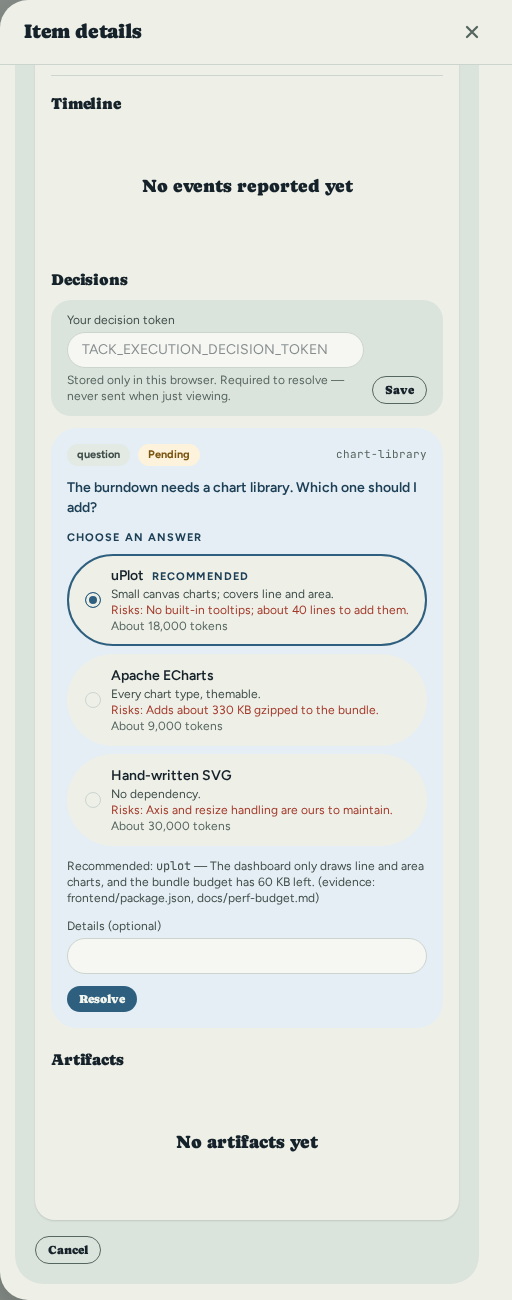
Answering needs the decision token, a secret your administrator sets that is separate from the ordinary sign-in. Paste it into the field Your decision token, in Waiting for you in the sidebar or under the question in Needs you; the browser keeps it for the session, and once it is given neither place asks again (Change replaces it). How to set it is in Installing and Operating Runners. A question waits until you answer it or stop the run: Tack never answers it for you, and the run's time limit counts only the agent's work, so it is paused while the run waits for you (the run's panel and Needs you say so). A docket team can give its own questions a deadline; a question docket expires is never treated as an Allow. The run then ends as Nobody answered with the question, when it was asked and how long the team waited; it does not read as a denial, because nobody denied anything. A run ends as approval denied only when a person refused the question. A question left past docket's time is cancelled, never answered "no" for you: the team stops without a refusal on its record.
Running from the command line
This is one complete run from the command line.
Before this: a project and a task exist (tack init, tack add), and agents are on for this computer
(the Agents page, or tack serve --with-runner) or an administrator has enrolled a runner.
tack execution create requires --permission-policy; the CLI fills in an idempotency key for you. Tack
builds the repository from the project.
Create a profile. Its instructions and limits are copied into every request made with it:
tack agent-profile create "demo-profile" \
  --instructions "Print the single word DONE and exit. Do not modify any files."
Created agent profile: demo-profile (ap_91b4e)
  id: ap_91b4ea76-9f1a-4725-8a58-21a57d92572c
Now start the run. --runner is optional: without it the request goes to the profile's fleet, or else to
the only active runner, which is the embedded one here.
tack execution create <ITEM_ID> \
  --agent-profile ap_91b4ea76-9f1a-4725-8a58-21a57d92572c \
  --harness claude-code \
  --model sonnet \
  --permission-policy '{"tools":[],"network":false}' \
  --timeout-seconds 120
--timeout-seconds is optional: without it the profile's time limit applies, else one hour.
Created execution request: exec_0fe
  state: queued
  id:    exec_0fe7252989f5f3d40a056c1da45b035039e4a8247ad89e5222cf9280134ec5d1
Check on it until it ends:
tack execution get exec_0fe7252989f5f3d40a056c1da45b035039e4a8247ad89e5222cf9280134ec5d1
Execution request exec_0fe7252989f5f3d40a056c1da45b035039e4a8247ad89e5222cf9280134ec5d1
  item:    e1d5e03d-4610-45c2-b5f1-835e69f148a7
  state:   succeeded (done)
  created: 2026-09-03T19:00:16.697646760+00:00
That is a completed run, reached with no browser. tack execution list shows every request, newest first,
and tack execution cancel <ID> asks the runner to stop one. For the detail of an attempt, such as which
model answered and how the run ended, open the task's Execution tab. Every tack execution
option is in the CLI reference.