Automating a Project
This page is for the person who decides how much of a project's work Tack does without being asked. After reading it you can say which profile and team work on which tasks, let a task start by itself, understand how far Tack may merge on its own, and read the badges that show what Tack did. It then covers the project's other agent settings: where the code is, where the agent works, and the default agent and model. A task that repeats is set on the task; see Repeating a task.
Automation
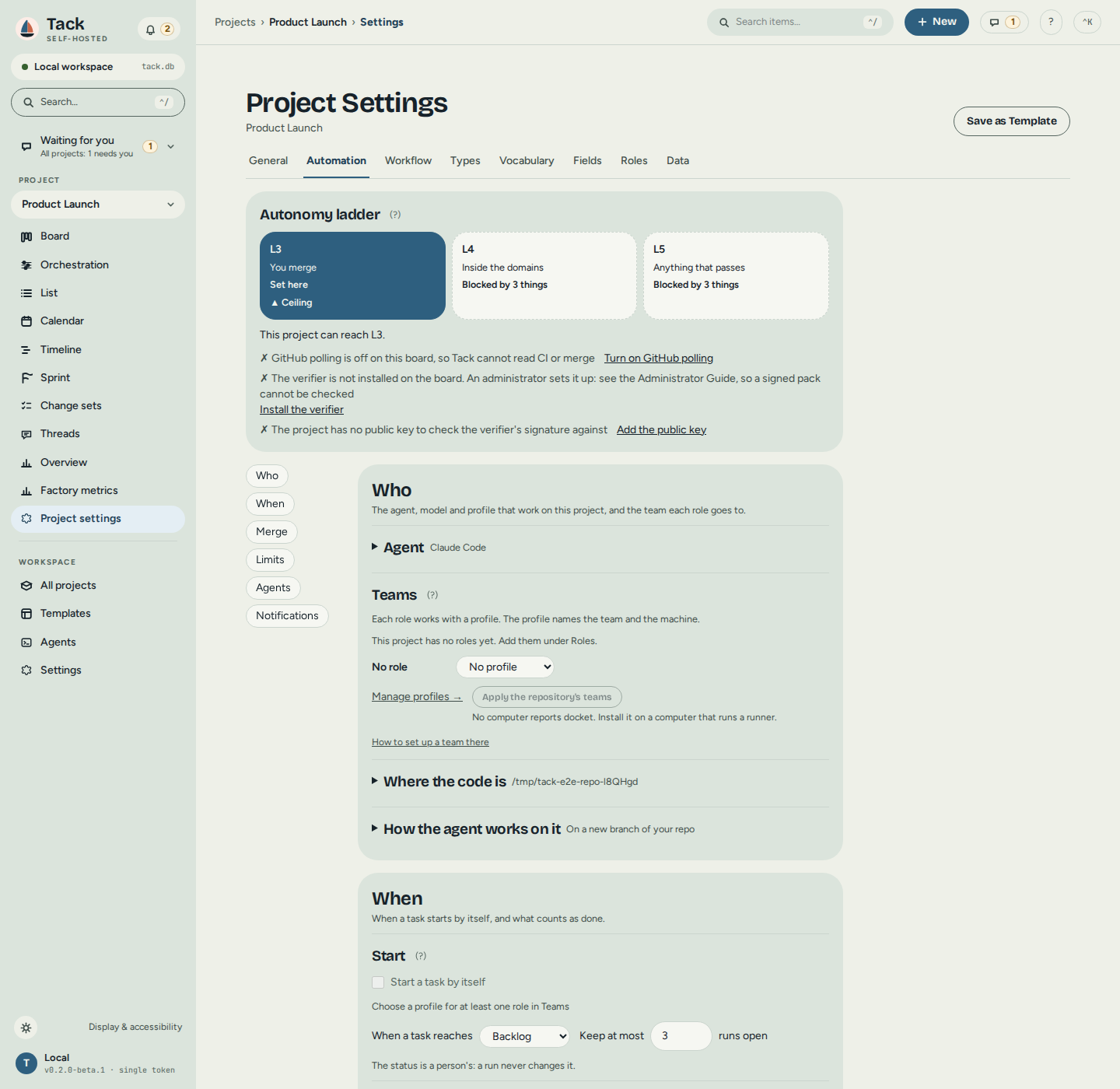
Everything lives in Settings → Automation, a tab of the project's settings. A value lives at the highest place that can own it: the computer (the Agents page), the project (this tab) or the task (the run dialog). The dialog shows project values read-only, with a link to change them.
The tab has two parts. At the top is the ladder, one picture of how far Tack may go on its own: the levels L3, L4 and L5 side by side. Each level is a choice for the project. The one the project is set to is filled in and says Set here, the most it can reach is marked Ceiling, and under the levels a line for each thing that holds the higher ones back says what to change, with a link to the fix. A level the board cannot allow yet is shown disabled, with the reasons.
Below the ladder are six sections, in the order you set them up, with an index beside them that stays in view on a wide screen:
- Who. The default agent and its model and profile, the profile each role works with (Teams), and where the code is and how the agent works on it (The project's other settings).
- When. Let a task start a run by itself when it reaches a status (Start), and write the definition of done the agent reads.
- Merge. The rules for letting Tack merge a finished change by itself, as far as you allow (Merge).
- Limits. How many tokens a day, how many automatic merges a day and how many waiting items the project allows, and the limit for a run whose profile sets none (Token limits).
- Agents. How far an agent may go on this board, and the triggers that wake a manager; see Managers and Threads and How far an agent may go.
- Notifications. Where what needs you is sent besides the screen. It reads the same for every project and shows, for the webhook, how many deliveries wait, how many were given up on and the last error. The webhook's address is set where the server starts; see Administration & Security.
A run never changes a task's status: the column is yours, and what the agents report is the task's Work. See Status and Work.
Which tasks does this touch? Only tasks with a role. A role is how Tack knows a task is meant for an agent. Create roles under Settings → Roles, and give a task a role on its Fields tab.
Teams
The Teams block of Who answers "who works on a task?". Each role works with a profile: the instructions, the tools and, optionally, the agent, the team and the fleet of machines that run it. You pick a profile for each role in a dropdown. No role is the project's default profile, used by a task whose roles name none. Under each choice a line says what you chose: the team, whether it runs lights-out or needs a person, and the machine ("this computer" or the name of a fleet).
How a run chooses its profile
When a run does not name a profile, Tack takes the first of these that exists:
- The profile chosen on the task itself (Who does it, below), or the settings saved from an earlier run of it.
- The profile of the task's role. If the task has several roles with different profiles, the project's default profile is used instead, and the run dialog says "More than one role has a profile, so the project default is used".
- The same two, read on the task's parent, then on its parent's parent, up to the top: the nearest epic that names a profile decides ("Chosen by the role Content, from Checkout").
- The project's default profile.
- The built-in Implementer.
The run dialog says which of these applied: "Chosen by the role Content", "Project default", "Saved on this task" or "The built-in Implementer". To use another profile for one run, choose another one under Who does it in the dialog; see The Run with agent dialog.
Teams and docket
With docket, a profile names a team, and every run goes to that team: see Choosing an
agent. A profile with no team uses the project's default team, named
for the project's folder. You choose a profile's team in the Team field of its form on the Agents page.
A profile can also name its agent, so that it always runs with one agent; that is set in the profile's
definition in the project file or with --tool-policy on tack agent-profile create.
Lights-out means the team can run to the end without a person. Needs a person means the team stops
for a person during a run, or breaks a rule of its profile. The line says which. An administrator checks
this with tack runner doctor; see Installing and Operating Runners.
A team can also work in a folder instead of a repository: a team that writes a report, researches or keeps a list has no branch to give back. Its line says "Works in a folder, not in this repository." A task given to such a team ends Succeeded with what the team's last step said it did. There is nothing to review, merge or open as a pull request, so the run never asks for a change. The run starts from the folder as it is: Tack names no base commit and no install step, because there is no repository to cut a branch from. A team that does have a repository and ends with no work to read still fails, with "branch not applied".
If the team keeps records (tables it fills as it works, such as leads or listings), its line also says what it keeps, as in "Keeps leads · 2 rows, listings · 1 row." The number is every row the set holds, whichever run wrote it.
What the Agents page shows about a team
The Agents page answers three questions that the profile list alone cannot: which agent does what, what each agent can do, and what a team is made of. Each task can use a different agent, so none of this is a global choice: you pick the profile, and with it the agent and team, for each task.
What each agent can do is a table: the four agents (Claude Code, Codex, OpenCode and Docket) are the columns and the five things an agent can do are the rows: stop a run, pick a run back up after a restart, answer your questions, propose items and report what a run used. Each cell is a tick (it can), a cross (it cannot) or a dash (the agent did not report it: Tack never guesses). Under each mark, How we know opens what the agent itself said, including the reason for a cross. An agent no computer reports is a column of dashes whose heading says how to get it.
Teams has one card per team any agent reports. A card shows only what the agent said:
- At the top, the agent that runs the team ("Run by Docket"), its shape as a badge, and where it works, with an icon: Works in this repository or Works in a folder.
- Its members as rows: a chip with the role as the agent names it, the model, and up to two icons, one for Reads only or Changes the project and one for Can propose items. Hover an icon for its words.
- Its steps as a pipeline in order, each with what checks it, and where a failed check sends the work back and how many times ("sent back to write up to 2 times"). A step that waits is a dashed box of its own.
- Work now as two counters, waiting and running, and Keeps: each record set it keeps with its row count ("leads, 2 rows").
- Runs to the end by itself or Stops to ask a person, with what to change so that it runs to the end; its network; and Can propose items, or the reason it cannot.
- Paused: budget spent, when the agent has stopped the team from taking tasks, with Resume team (or the command that resumes it, when the agent has no way to do it from the board). A run sent to a paused team waits and its timeline says so. If the budget is still spent, the note says the team pauses again and how to raise the limit; see A Team.
- Profiles that use it, each a link that opens the profile for editing.
A line the agent did not report is one greyed line, "Not reported by Docket", so that "no network" and "the agent did not say" are never mixed up. A team that only your profiles name, and no computer reports, is marked Not reported by any computer.
A reported team that no profile uses has Make a profile for this team. It creates a profile for that agent and team with the Implementer's tools, and opens it so you can change its name, instructions and limits.
Under the teams, Profiles with no team lists each profile that runs a single agent, under the agent that runs it ("One agent · opus"), or "A single agent, no team" when the profile lets you pick the agent for each task. The four profiles that come with Tack (Implementer, Reviewer, Researcher and Planner) are of this kind. You can edit them but not delete them, and each shows its description and the agent that runs it. In a profile's Team field, the teams an agent reports come first; a name that only profiles use follows, under Not reported by any computer. The Teams step of Automation offers the same grouping when you choose a profile for a role.
The Apply button
Apply the repository's teams makes the teams the project's roles work with that no computer reports yet. It builds them from the folders the project's repository holds in .docket/teams/, on the computer that holds the project's folder. Under the button each missing team has the shape it is made from (build unless you choose another). A build team works in the project's folder. A team of any other shape (respond, operate, routine) works in a folder docket makes for it, never in your project's folder, and reads its configuration from .docket/teams/ in the project.
The Orchestration Map and the preview of an imported project file list the same missing teams, each with a Create button beside its command that makes just that one.
The board does not reach that computer itself: it asks a computer that runs docket, which makes each team from its shape and applies the team's folder. The button is enabled when a computer reports a docket that can do that. Otherwise it stays on the screen, disabled, and says why: no computer reports docket, the docket on your computers is too old and needs updating, or every team the roles use is already reported. The link beside it, How to set up a team there, opens the Administrator Guide for making a team by hand. The project's code must be a folder on that computer.
When a team's folder would run commands on the computer (an install command, a command it is allowed to run, open network access), docket stops and lists them. The board shows the list with a code: read the commands, and confirm if you agree, and the computer then applies the team. If you cancel, the team is not made.
- A team docket refuses shows docket's reason beside the button, for example a team folder whose shape differs from the one the team was first made from. A team that already exists is never made again with another shape, so change the shape in the folder or remove the team in docket.
- If no computer answers within half a minute, the team is not applied and the board says so.
Manage profiles links to the profiles on the Agents page.
A project with no roles says: "This project has no roles yet. Add them under Roles."
When something does not load
A step that cannot read what it shows says so, in place of an empty answer: "Could not load the autonomy settings.", "Could not load this project's roles." or "Could not load the agent profiles", followed by the reason the board gave and a Try again button. It never reads "No roles yet" or "not available" because the board did not answer. The same holds for every other screen: one that cannot draw shows "This page could not be shown" with Try again, and the sidebar stays where it is.
Start
The Start block of When lets a task start by itself. It is off until you turn it on. It needs a profile to run with, so until a role or the project has one, the three controls are disabled and the section says "Choose a profile for at least one role in Teams".
- Turn on Start a task by itself.
- Under When a task reaches, choose the status that starts a task. The list shows your workflow's statuses.
- Under Keep at most … runs open, choose how many runs may be open in the project at once. It starts at 3, and the smallest value is 1.
Until you pick a status, the list shows the first To do status. Turning the switch on saves the status shown, so a project never has the switch on with no status to watch.
About every thirty seconds Tack looks at the tasks in that status and starts the most urgent first (critical, then high, medium, low, none), and within the same priority in board order. A task starts only when all of these hold:
- It is work, not an epic: an item that holds other items is never started by itself, only its items are (see An epic is planned, its items are run).
- It has a role, or a profile chosen on the task itself, or its epic has one (see Who does it below).
- It has never had a run. A task starts once; a second run is yours to start.
- It has no unfinished blocker.
- A profile resolves for it, as under Teams, and an agent is named by the profile or by the project's default agent.
- There is a machine to run on: the profile's fleet, or exactly one active runner.
- The project's daily limits are not spent (tokens, items waiting for your review; see Budgets).
- Fewer than the cap of runs are open in the project.
A task that waits in the status because one of these does not hold says so, on the board card and on the task itself, as "Waiting to start:" and the reason: "Blocked by 2 unfinished tasks", "3 runs are already open, the most this project allows", "This project's token limit is reached", "No one is chosen to do it", "No computer can run it" or "It already has a run open". When the reason has a way out, the sentence says it. A task that nothing holds back shows no line, and it starts at the next look.
A task that starts stays in the status it was in: only you move it, and a column's work-in-progress limit does not hold it back. Its activity says "Started by itself: it reached To Do with the role Content", or, for a task with no role, "Started by itself: it reached To Do with no role, and goes to the team saas-content" (or to the agent, such as Codex, when the profile names no team). The agent works with the tools its profile allows. Web tools are on only when the profile says its role needs the network or its tools for the agent include the web tools. The run lasts as long as the profile's time limit allows, and one hour when it sets none.
It asks before each action unless every machine that could run it sandboxes the agent. On a machine where the agent is not sandboxed, a run started by itself pauses at each action and waits for your answer, as under Asking before acting.
It switches itself off when the project drops to L3. When a change that Tack merged by itself is reverted, or CI fails on its merge commit, Tack takes the project down a level. If that lands the project at L3, Start is turned off, and the section says "Auto-start is off: the project dropped to L3". You turn it back on yourself.
How often Tack looks is the administrator's setting; see Configuration.
Who does it
A task does not need a role to start by itself: you can say who does it on the task. Who does it is on the new-item dialog, on the item's Automation row and in the Run with agent dialog, and it is the same list in all three: every profile, grouped by the team it names or, for a profile with no team, by the agent that runs it. The Run with agent dialog describes the list. Each task can use a different agent; the choice is for this task.
Choosing a profile saves it on the task. Nobody yet removes it, and the task goes back to the profile of its role or the project's default. The Automation row says where the choice came from: "chosen on this task" or "from the role Content". The Run with agent dialog always needs a profile, so it has no Nobody yet.
An item with no role and no profile of its own takes the one of the nearest epic above it that has one: give Checkout the role Builder and every task under it is done by Builder, unless a task says otherwise. The choice reads "Chosen by the role Builder, from Checkout". If the roles of that epic name different profiles, the climb stops there and the project's default is used.
Merge
The level is chosen on the ladder. The Merge section holds the rules that go with it: Merge when moved to Done, the Domains (paths and task types, each with its own level), the Stages the verifier must run, the Public key that checks the verifier's signature, and Times a rejected change goes back to the agent. All of it is explained on Merging from Tack, together with the Merge button. L4 and L5 are shown disabled, with the reasons, until what an automatic merge needs is in place.
Ceiling
The ladder at the top of the tab shows the most this project can reach, and what holds it down. It reads "This project can reach L5." until something lowers it. The level the project is set to is filled in, the ceiling is marked on its level, and each level above the one you set says whether it is Available or Blocked by a number of things. A screen reader gets the same sentences as the lines below the picture.
A team that needs a person during a run keeps its tasks at L3, however high the project's level is. For each team that your roles' profiles name, the ladder lists one line:
- "✓ The team X runs lights-out."
- "✗ The team X keeps its tasks at L3." followed by what to change, and a link Run X lights-out to the Administrator Guide.
- For a team that no runner reports yet: "✗ The team X keeps its tasks at L3. No runner reports this team yet", with a link to the Agents page.
While a team needs a person, the ceiling reads L3 and the Merge section shows L4 and L5 disabled, with the same reason. Other things that hold L4 and L5 off appear below the teams, each with a ✗ and a link to its fix: GitHub polling is off on this board (Turn on GitHub polling), the verifier is not installed where the board runs (Install the verifier), or the project has no public key (Add the public key, which takes you to the key field).
The ceiling holds back only the automatic merge. The Merge button is never held by it. If the team that ran a change needs a person, the automatic merge holds the change and the task says "The team that ran this stays at L3: it needs a person during a run".
What Tack shows when it acts
When Tack acts without you, it tells you in three places.
Badges on the board and the list:
| Badge | Meaning |
|---|---|
| Started by itself | The project started the task's latest run, because the task reached the start status |
| Team: name | The team named by the profile the latest run used |
| Merged by itself | Tack merged the change automatically, under the verifier's signed verdict |
Hover a badge for a one-sentence explanation.
The task's Automation row, the last line of the Work panel in the task drawer, says what happens to this task without you:
- "Starts by itself when it reaches To Do · Team saas-content · Merge L3", when the project starts tasks by itself;
- "By hand: this project doesn't start tasks by itself", when it does not;
- "By hand: the role Content has no profile", when a role of the task has no profile and the project has no default.
The task's activity, in one sentence per step:
- "Started by itself: it reached To Do with the role Content"
- "Tack merged pull request #12 automatically (domain docs, L4)", or "… with the Merge button", or "… when the task moved to Done"
- "Tack did not merge: " followed by the reason
- "Tack took domain docs from L4 to L3: pull request #12 (merged automatically) was reverted", or "went red on its merge commit"
- "Auto-start is off: the project dropped to L3"
- "Created the next one, due 2026-11-30"
- "Moved to Done over MCP: not merged; use Merge"
The project's other settings
These are the folded sections inside Who and When. Each saves as soon as you change it.
Where the code is
The answer to Does this project have code? from when you created the project: an existing folder on this
computer, or no code yet. Under Advanced there is also a repository URL, for a repository the agent
should clone. For a folder, the tab reads it back in one sentence ("A git repository on branch main, no
uncommitted files", "A folder without git: the agent will work in it directly"). Two things are said in red, and
the folded section's own line says them too ("Not found: …", "Temporary folder: …"): a folder that is no longer on
this computer, where every run fails, and a folder in /tmp or another temporary folder, which the system can
delete at any time. Point the project at your real repository instead.
A Branch field names the branch to work from. Install dependencies before each run is on by default:
Tack prepares the agent's copy with the command that matches the folder's lockfile, installs nothing when
there is no lockfile, and uses the command you type in Install command instead when you give one. A line
under it says which applies.
Where the agent works
How the agent works on the code is a project setting with three modes. Tack picks the first two for you from your folder. You never type a repository address for code on this computer.
| Mode | What it does | When it is the default |
|---|---|---|
| On a new branch of your repo | Makes a worktree of your repository on a branch named tack/<task>-a<n>. The branch stays in your repository after the run. Your own checkout, your files and your index are untouched | A folder that is a git repository |
| In the folder, directly | The agent edits your folder itself, as if you had run it in a terminal. Nothing is ever deleted or moved, and your git index is untouched | A folder without git |
| A fresh clone per run | Clones the repository into a new workspace for each run | Never the default. It is under Advanced, for a URL or for a runner on another computer |
For a git folder, the first mode is the default because it costs nothing (no network, shared objects), keeps the result in your repository, and does not build on top of whatever is half-done in your checkout. In the folder, directly is one click away. In a folder without git it is the only mode. A project with no code shows "This project has no code. Choose a folder to let agents work on it." in place of these choices. docket works only on a new branch of your folder.
Push the branch when a run finishes is a switch, off by default. Turning it on pushes the run's branch to the repository's remote, using your own git credentials. It is disabled with a reason when it cannot work: "Not available when the agent works in the folder directly", or "Push is not configured on this computer". Push is set up on the runner by an administrator; see After a succeeded attempt. If the project has push on and the runner does not, the run records "push skipped" instead of failing. The work is not lost either way: in the first mode it is on the local branch.
Definition of done
The Definition of done is one text the agent reads on every run of this project.
Agent and model
- Agent is the agent a new run uses. Each choice is an agent that a runner on this computer reports. A line below it says whether the agent is sandboxed or has your user's access, or, when the agent cannot be used here, why. With no runner reporting an agent, the section says "No runner reports an agent yet".
- Model is the same field as in the run dialog: Agent's default, the models the agent listed or suggested, and Another model…. Changing the project's agent clears the model, because a model name belongs to one agent. Until you choose an agent it says "Choose an agent first". See Choosing a model.
- Default profile is which profile a new run uses when nothing else chose one. It is the same setting as No role under Teams. With no profiles it says "No agent profiles yet".
Profiles
A profile is what the agent is told to be and which tools it may use. Four are built in:
| Profile | What it does |
|---|---|
| Implementer (default) | Reads, edits and runs commands |
| Reviewer | Reads and reports. Changes nothing |
| Researcher | Reads and searches, and writes a report. The only file it writes is the plan file tack-plan.json, when its findings lead to work |
| Planner | Plans and designs, and proposes items you can accept. The only file it writes is the plan file tack-plan.json |
You pick one under Who does it in the run dialog. You edit a profile in a form on the Agents page, never as JSON. A profile you change is copied into each request when the request is created, so editing it later never changes the history of an earlier run. The profile's list of tools for an agent is the default for every agent: a run that names its own tools (from the command line or an MCP client) uses those, and a run that names none uses the profile's. A profile that gives the agent no tools gets a warning in the dialog: it can only answer in text.
Each profile also carries one line saying what it delivers (a change on a branch, a document in a folder, an answer), which the Agents page shows beside the agent that runs it. Three chips beside it say whether the profile's tools can change files, run commands or use the network; they are read from the tools you tick, so you never type them, and a chip that does not apply stays on the row, dimmed. The profile form also has a Team select, for the team that takes its runs; it lists the teams your profiles already name, and "No team" sends the runs to the project's default team.