Working with Items
Every piece of work in Tack — a task, bug, feature, building, work order, or whatever your project's vocabulary calls it — is an item. You inspect and edit an item through the item detail drawer, a panel with inline header editing and tabs for Details, Brief, Activity, Execution, Dependencies, Files, and Fields.
Opening an item
The drawer opens whenever the ?item=<id> query parameter is present in the URL. You open it by:
- Clicking a card on the Board, a row in the List or Table, or a search result.
- Navigating directly to a link such as
https://tack.test/board?item=<id>.
Because the open item lives in the URL, item links are deep-linkable and shareable — paste the link to a teammate and the same drawer opens for them. Press Esc or use the close control to dismiss the drawer; focus returns to where you were.
At the top of the drawer, the header shows:
- A type badge (labeled with your project's vocabulary, e.g. "Task" or "Work Order") and the item's short id — the first six characters of the id, uppercased.
- The editable title. Edit it inline; the change commits when you blur the field or press
Enter. - A row of status pills, one per workflow status. Click any inactive pill to transition the item to that status. The transition is validated by the project workflow (allowed transitions and WIP limits are enforced server-side); if it is rejected the item reverts and an error toast appears.
- Priority, Estimate, Due date, and Sprint controls.
- Tags — type a tag and press
Enterto add; click the×on a tag to remove it.
All header edits save immediately (optimistic update: applied locally first, then persisted).
Details tab
The Details tab holds the item description, edited with the rich-text editor. Use it for details, acceptance criteria, or notes.
The description autosaves — edits are debounced and persisted automatically a short pause (about 0.6 seconds) after you stop typing. There is no save button.
Core metadata — assignee, priority, estimate, sprint, due date, and labels (tags) — lives in the header above the tabs (see Opening an item), so it is always visible regardless of which tab is active.
Brief tab
The Brief says what "done" means for an item, in a form a person or a program can check. It has four parts, and Save brief writes them all at once.
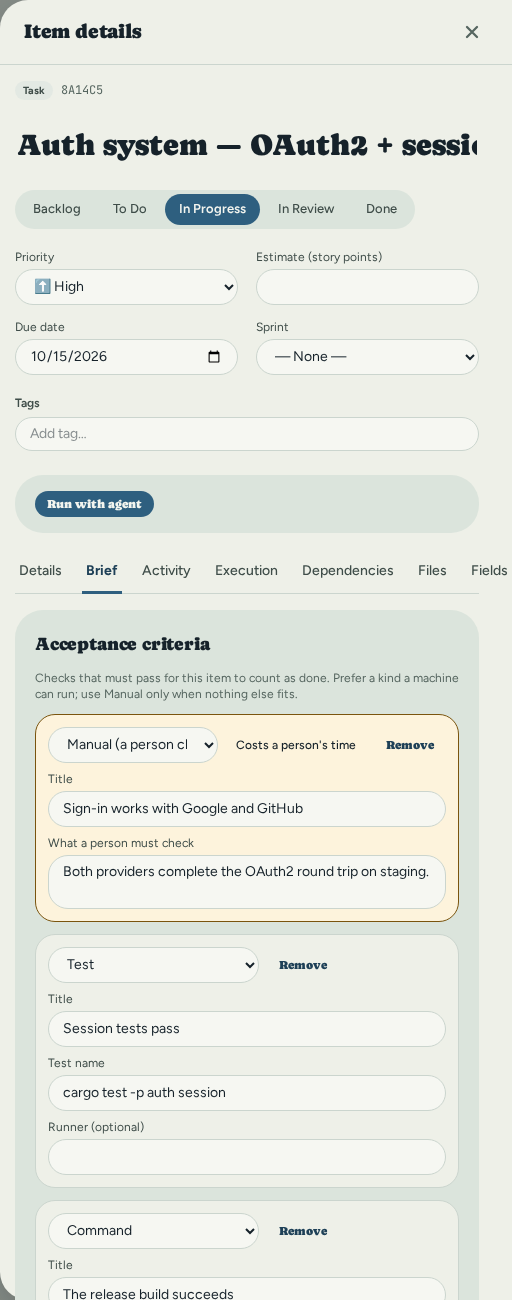
Acceptance criteria are the checks that must pass. Each has a title and one of six kinds:
- Command — a shell command and the exit code it must return (0 by default), with an optional working directory.
- Test — a named test, with an optional runner such as
pytest. - Metric — a named measurement compared to a threshold: at most, at least, or exactly, with an optional unit.
- File exists — a path that must be present.
- File is absent — a path that must not be present.
- Manual — something a person has to check by hand.
Use Manual as a last resort. Every other kind can be checked without anyone's time, so a Manual criterion is marked as one that costs a person. Reach for it only when nothing else can express the check.
Constraints limit how the work is done: a path that must not change, a dependency that is allowed, a maximum number of changed files, or a free-form note.
Definition of done is a few plain sentences on when someone can stop and call the item finished. It covers what the criteria cannot, and it is the first thing a reviewer reads.
Risk is low, medium or high. Leave it unset if you are not sure.
A brief holds up to 50 criteria and 100 constraints, and each criterion needs an id that is unique within the brief (the editor chooses one for you). If the server rejects a save, the reason appears next to the part it concerns.
Fields tab (custom fields)
Custom fields capture project-specific data that the built-in fields don't cover — a vendor name, a budget figure, a compliance flag, and so on. They are defined per project (in project settings); the Fields tab shows every field defined for the item's project, plus role assignment.
Set a value by typing or selecting in the control next to the field name. Each change is saved as you commit it; clearing a text-like field removes its value. Values are validated on save against the field's type — an invalid value is rejected and shown as an error toast, not stored.
Field types
| Type | Accepts | Example |
|---|---|---|
| Text | Any string | Acme Corp |
| Long text | Any string (multi-line textarea) | Multi-paragraph notes… |
| A string | info@yielab.com | |
| URL | A string starting with http:// or https:// | https://example.com/spec |
| Number | A numeric value | 42 |
| Boolean | A checkbox (true/false) | true |
| Date | An ISO 8601 date — YYYY-MM-DD or RFC 3339 | 2026-06-30 |
| Select | One value chosen from the field's defined options | In review |
| Multi-select | An array of values, each from the field's options | ["frontend","urgent"] |
A field definition may also carry extra validation rules that apply on top of the type check: a regex pattern and min_length/max_length for strings, min/max for numbers, and max_items for multi-select. Values that violate these rules are rejected with a descriptive message.
If a project has no custom fields, the tab shows "No custom fields — define fields in project settings."
Execution tab
The record of every time an agent was handed this item. Each request lists its attempts, with the state, the runner, the model that ran against the one requested, and what it cost (or Not measured). When the attempt's branch became a pull request, a PR #n link and a badge (open, merged, closed or reverted) sit on the attempt. Show events, decisions & artifacts opens its timeline, the questions the agent asked, the files it produced, and, when a verifier ran, the merge-readiness pack to accept or reject. A question that is still waiting appears in the decision inbox on the same tab, with the options, their risks and the agent's recommendation. Everything on this tab, and how to start a run, is in Agent Runners; the item's Brief is what the agent is given as the definition of done. An item that was never run shows an empty tab, not a hidden one.
Dependencies tab
Use this tab to record how an item relates to others in the same project. Two directions are supported:
- Blocks — this item must be done before the linked item can proceed.
- Blocked by — the linked item must be done before this one can proceed.
The tab lists current Blocks and Blocked by links. Click a linked item's title to open its drawer. Click the × to remove a link.
To add a dependency, pick a direction, choose the other item from the picker, and select Add.
Tack's dependency graph is a DAG (directed acyclic graph), so:
- Cycles are rejected. If adding a link would create a loop (A blocks B, B blocks A), the server refuses it and the error is shown inline beneath the form.
- Self-references are rejected — an item cannot depend on itself. The picker only offers other items in the project.
Activity tab
The Activity tab is the item's comment timeline. Comments are listed oldest-first, each showing the author (or "Anonymous" when none is recorded) and a relative timestamp (just now, 5m ago, 3h ago, 2d ago, then a calendar date for older entries).
To add a comment, type in the box at the bottom and select Comment. Posting is optimistic — your comment appears immediately and is rolled back with an error toast if the server rejects it.
Files tab (attachments)
Attach files to an item from the Files tab:
- Drag and drop files onto the drop zone, or click it to browse. Multiple files at once are supported.
- The maximum file size is 50 MB per file. A larger file is skipped with an error toast and the rest continue uploading.
Each uploaded file is listed with its size and MIME type. Click a filename to download it (served with the original filename); use Delete to remove it.
On the server, the file bytes are written under the configured storage directory (TACK_STORAGE_DIR, default ./storage), organized by item id under a collision-proof generated filename, while the metadata (filename, MIME type, size, storage path) is recorded in the database. Deleting an attachment removes both the file on disk and its database record.
API note. Uploads use
multipart/form-datawith afilefield:POST http://127.0.0.1:3210/api/items/<item-id>/attachmentsThe 50 MB limit is enforced server-side; oversize uploads return
400 Bad Request.
Comments
Comments live in the Activity tab (see above) — that tab is the item's discussion thread. Open the item, switch to Activity, write in the comment box, and select Comment to post.